Make a receipt
Add items, set quantities, attach a client, and print.
- Tap an item to add it to the current receipt. If it has several sizes, a list opens: tap the size you want. That list also has a Quantity box.
- To add several of a one-size item at once, press and hold it and type the quantity.
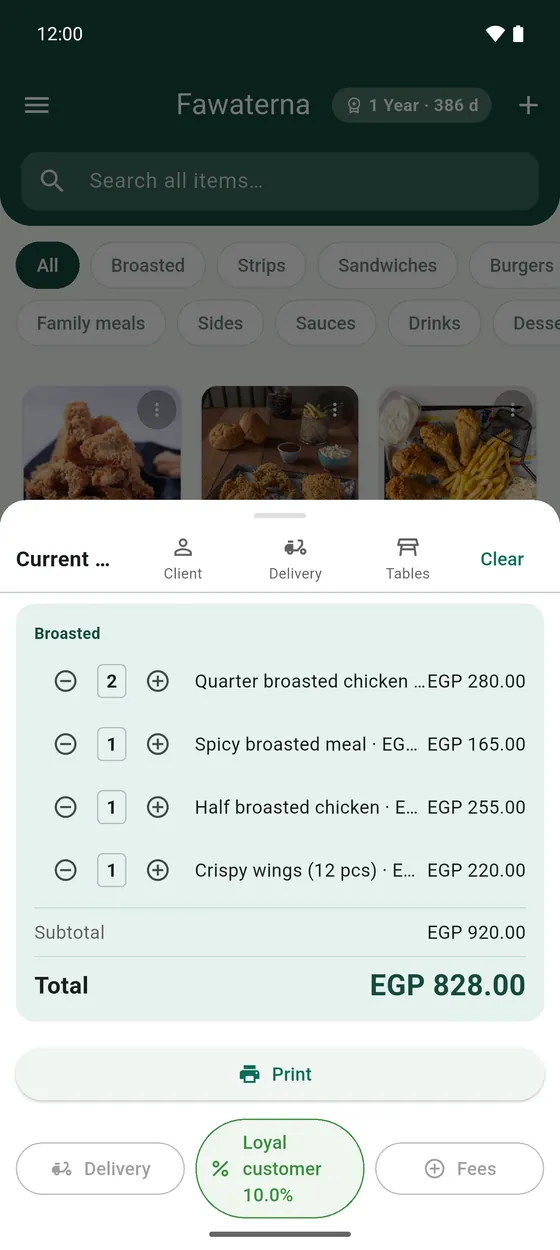
- Tap the bar at the bottom (Current Receipt) to open the receipt.
- Use + and − beside each line to change its quantity. Tap Clear to start over.
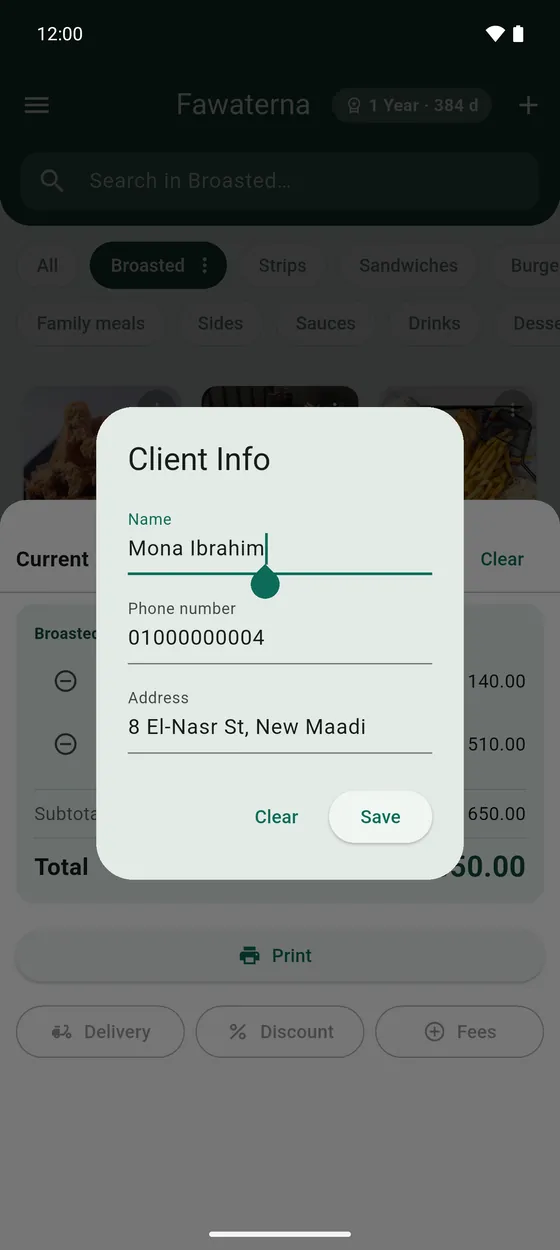
- Tap Client to attach a customer. Type a name or phone number and pick from your saved clients, or type a new one.
- Add fees, a discount or delivery with the buttons under Print. See Fees, tax and discounts.
- Tap Print and choose one or two copies. The receipt is saved and printed.