
Fees, tax and discounts
Set service, tax, discounts and delivery fees once, then use them in one tap.
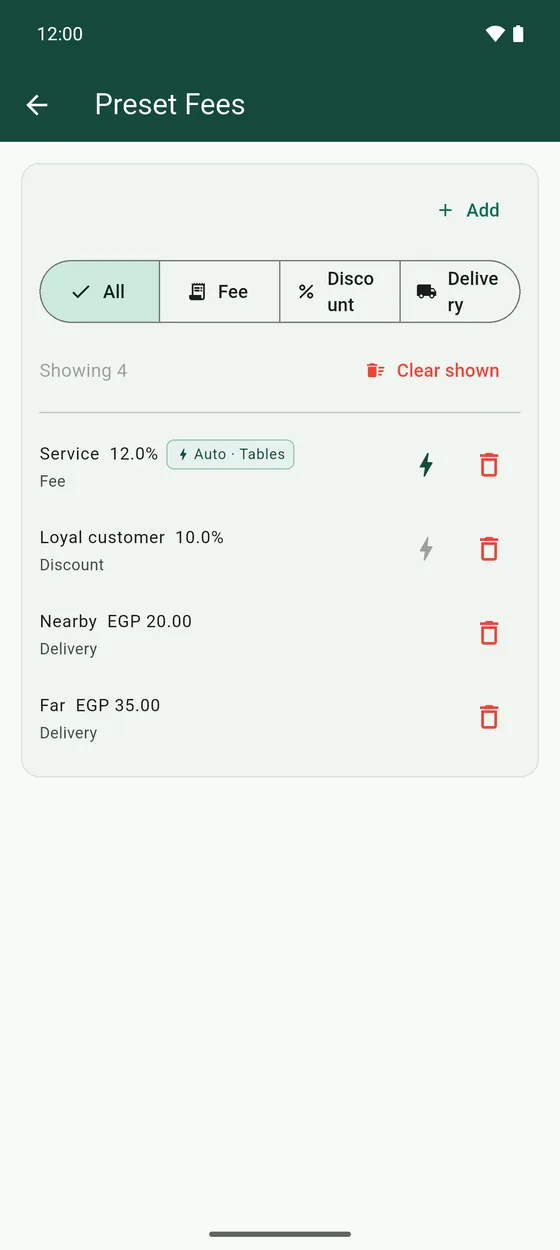
Presets are charges you set up once in App settings → Preset Fees. On a receipt you apply them with one tap.
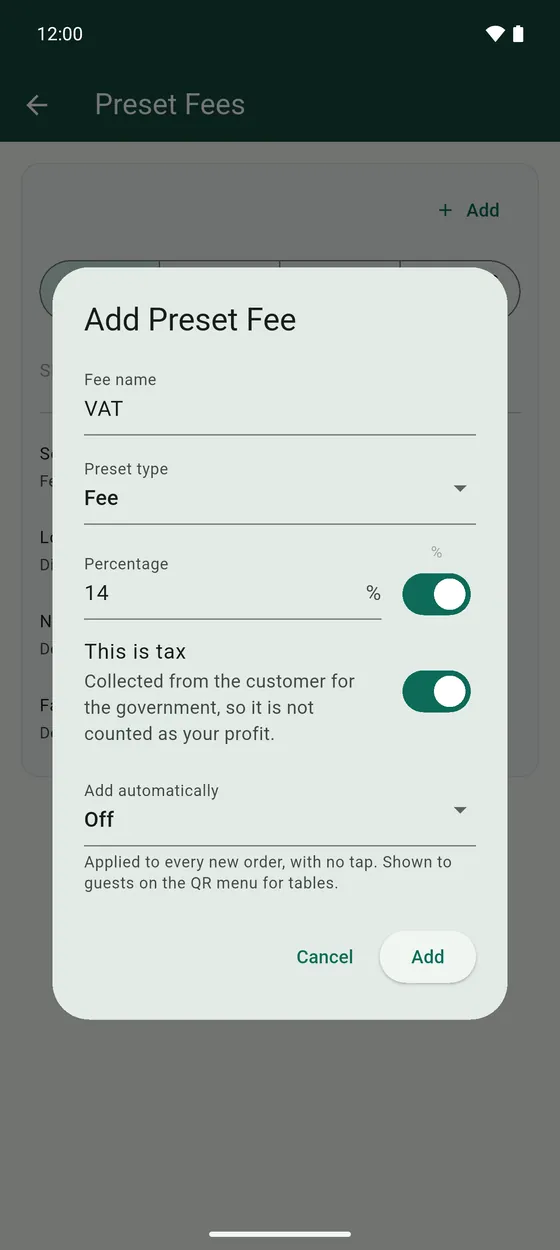
Add a preset
- Open App settings → Preset Fees and tap Add.
- Type a name, like Service or VAT, and choose the Preset type: Fee, Discount or Delivery.
- Type the value. Switch on % to make it a percentage of the receipt, or leave it off for a fixed amount.
- If it is a tax, switch on This is tax. It switches on by itself when the name says tax or VAT.
- Choose Add automatically if you want it on every new receipt without tapping: in-house, tables, or both.
Use them on a receipt
Under Print on the receipt you will find a button for each kind you have set up, such as Discount and Fee. Tap one to choose from your presets. Tap it again to take it off.
Why mark tax as tax?
Tax is collected for the government, so it is not your money. When a fee is marked as tax, your net profit in Statistics leaves it out.