
Set up your menu
Categories, items, sizes, photos and costs.
Your menu is made of categories, like Drinks, and the items inside them, like Latte. An item can have several sizes, each with its own price.
- On the register, tap + at the top and choose Add Category. Type a name such as Drinks and tap Add.
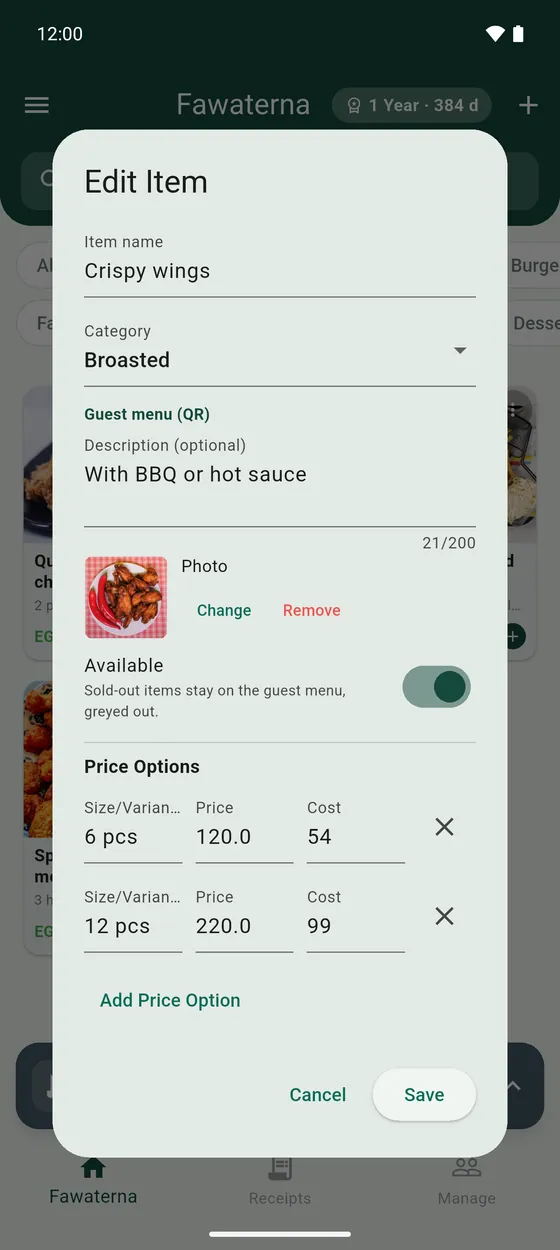
- Tap + again and choose Add Item. Type the item name and choose its category.
- Under Price Options, type a Size/Variant (for example Regular) and a Price. Tap Add Price Option to add another size. If the item has only one price, you can leave the size empty.
- Add the Cost if you want to know your profit. It is what the item costs you to make. Customers never see it.
- Add a photo and a description if you like. They show on the register and on the QR menu.
- Tap Save.
Change or remove things
- To edit or delete an item, tap the ⋮ on its picture.
- To rename or delete a category, select it and tap the ⋮ on its tab.
- To find an item fast, type in the search box at the top. Choose All to search every category at once.
- Mark an item Sold out when you run out. It stays on the QR menu, greyed out, so guests can see it is not available.