
QR menu and guest orders
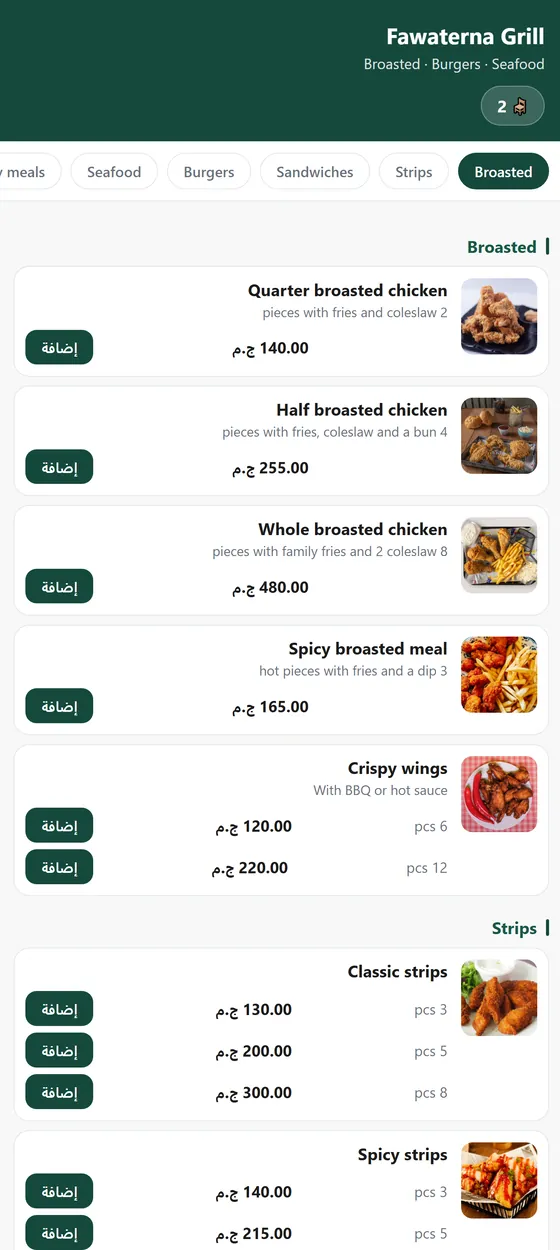
Guests scan a code on the table, see your menu and order from their own phone.
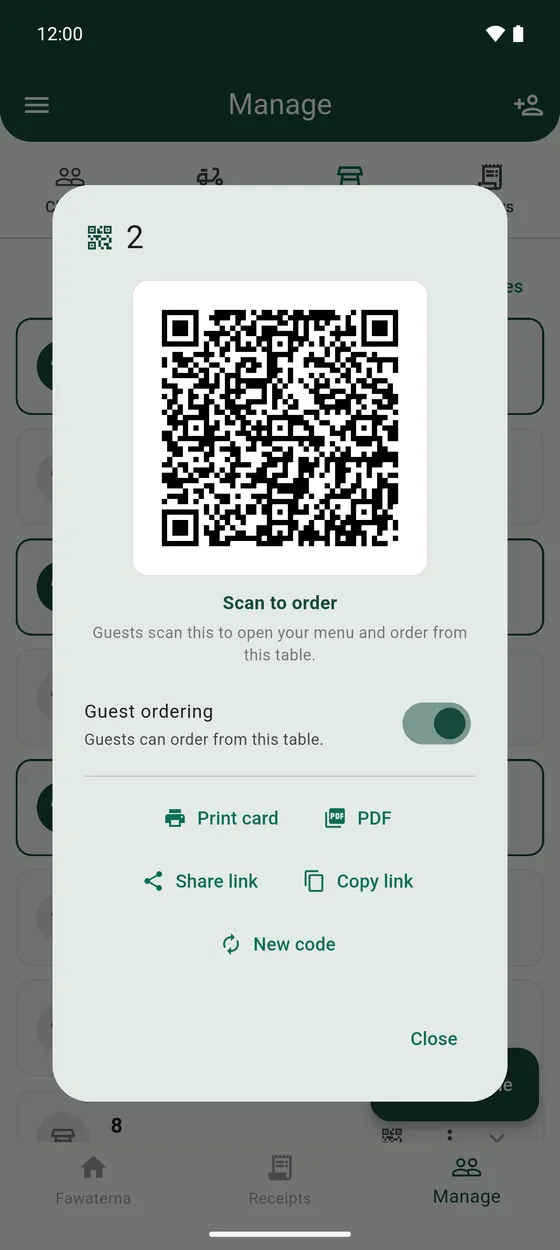
- Open Manage → Tables. On a table, tap the QR icon (QR menu).
- Tap Print card to print a small card, or PDF to save it. PDF of all tables makes one file for the whole shop.
- Stand the card on the table. Guests scan it with the phone camera. They need no app and no account.
- They choose their items and send the order. It reaches you at once, with a notification.
Handle the orders
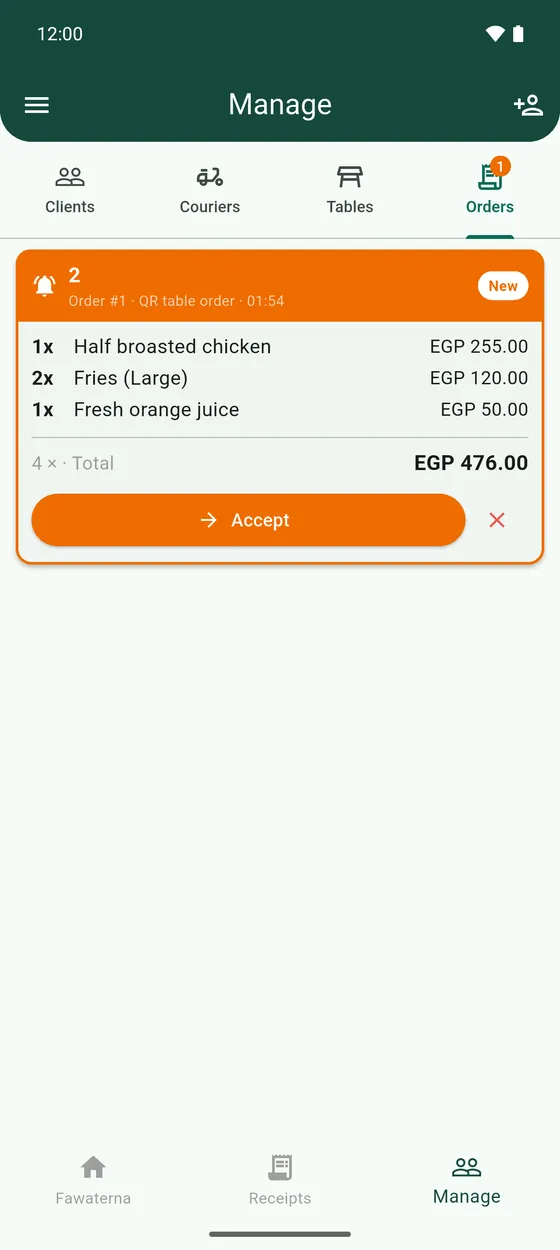
New orders appear in Manage → Orders, and the tab shows how many are new. Each order moves forward with one button: Accept, Start preparing, Mark ready, Mark served, Complete. Accept adds the order to the table's bill.
- Guest ordering switches a table's card on or off. Switch it off and the printed card stops working.
- New code replaces a table's code. Cards already printed stop working, so print a new one.
- Cancel order if you cannot serve it.